
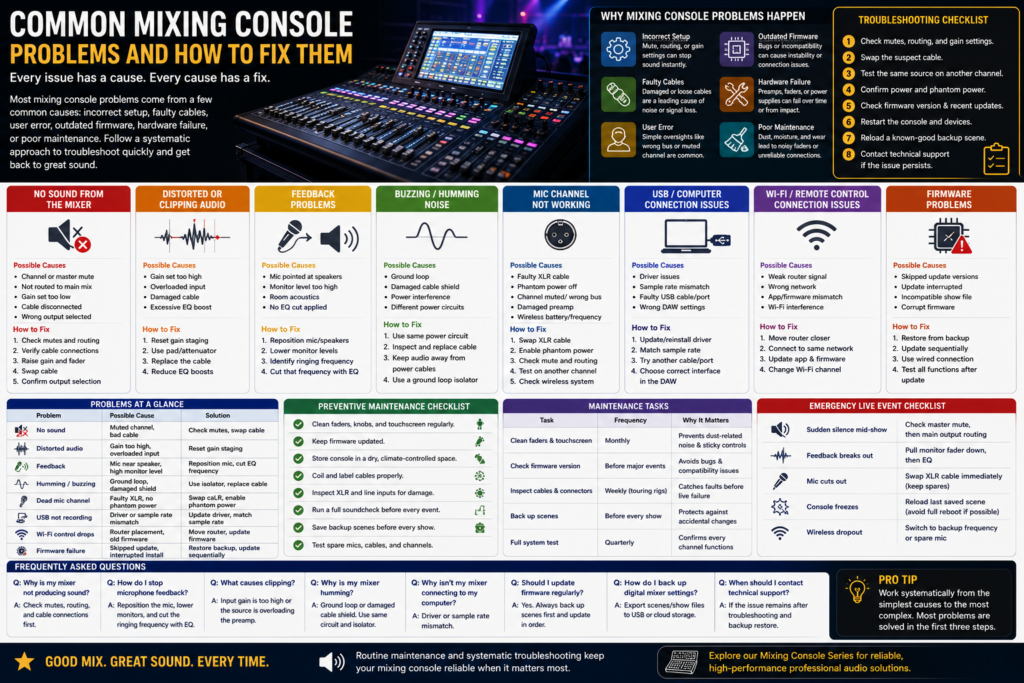
Every sound engineer runs into mixing console problems eventually a dead channel five minutes before doors open, a hum that shows up out of nowhere, or a mixer that suddenly won’t talk to a laptop. Most of these issues have simple, predictable causes once you know where to look.
This guide walks through the most common problems engineers face with a live sound digital mixing console, a studio mixer, or a powered mixing console, along with step-by-step fixes. You’ll also find a preventive maintenance checklist and an emergency troubleshooting list you can keep handy for live events.
If you’re looking for the right audio mixer, our Mixing Console Guide explains the different types of mixing consoles, key features, and buying tips to help you choose the best solution for live events, studios, churches, and professional audio applications. Explore the guide to make an informed purchasing decision and find the ideal mixing console for your needs.
Why Mixing Console Problems Happen
Mixing console problems usually come down to a small set of causes: incorrect setup, faulty cables, user error, outdated firmware, hardware failure, or poor maintenance. Most issues can be traced back to one of these categories, which makes systematic troubleshooting far faster than guessing at fixes.
Understanding which category a problem falls into is the first step. A muted channel is user error. A crackling XLR input is usually a cable fault. A mixer that won’t boot after an update is a firmware issue. Working through causes in order cables first, settings second, firmware third, hardware last saves time during a live show when every minute counts.
No Sound from the Mixing Console
No sound from a mixing console is most often caused by a muted channel, an unassigned bus, a disconnected cable, or an input set to the wrong gain. Check mute status, routing, and cable connections in that order before assuming a hardware failure.
Possible causes:
- Channel or master mute engaged
- Channel not routed to the main mix bus
- Gain set too low or the trim at zero
- Cable disconnected or plugged into the wrong input
- Output not selected on the audio routing page (common on a digital mixing console)
Step-by-step troubleshooting:
- Check the channel mute and master mute buttons first — this is the single most common cause.
- Confirm the channel is routed to the correct bus or main output.
- Verify the input cable is fully seated at both ends.
- Raise the channel gain and fader together to confirm signal is present.
- Swap the cable with a known-good one to rule out a cable fault.
Prevention tip: build a habit of checking mute status and bus assignment before every soundcheck — it takes ten seconds and rules out the most common cause immediately.
Distorted or Clipping Audio
Clipping happens when a signal exceeds the mixer’s headroom, most often from excessive input gain, an overloaded preamp, or aggressive EQ boosts. Correct gain staging at the input, not just fader position, is the fastest way to resolve distortion.
Common causes:
- Incorrect gain staging at the preamp stage
- Overloaded inputs from a loud source, like a kick drum or brass instrument
- Damaged or shorted cables introducing noise that reads as distortion
- Heavy EQ boosts pushing a frequency band into clipping
Solutions:
- Set gain so peaks sit comfortably below the clip point, typically around -6 dB headroom.
- Use a pad or attenuator on very loud sources before the preamp stage.
- Replace any cable showing intermittent crackle or dropout.
- Pull back aggressive EQ boosts rather than compensating with more gain.
Feedback Problems During Live Performances
Microphone feedback occurs when a mic picks up sound from a speaker and re-amplifies it in a loop. Fixing feedback starts with microphone and speaker placement, followed by targeted EQ cuts and, if needed, a feedback suppressor.
Practical fixes:
- Keep microphones out of the direct path of monitor and main speakers.
- Angle monitor wedges away from open mics whenever possible.
- Pull down monitor levels slightly before boosting further feedback often starts in monitors, not the main mix.
- Sweep a narrow parametric EQ cut at the ringing frequency once feedback starts.
- Use built-in feedback suppression on a live sound digital mixing console for problem frequencies that keep recurring.
Real-world example: a worship team running handheld vocal mics near a monitor wedge often hears a ring right before feedback breaks out cutting that specific frequency by 3–6 dB on a parametric EQ usually solves it without killing the vocal tone.
Buzzing, Humming, or Ground Loop Noise
Humming or buzzing on a mixing console is usually caused by a ground loop, a damaged cable shield, or nearby electrical interference. Running all equipment from the same power circuit and using a ground loop isolator are the most reliable fixes.
Troubleshooting steps:
- Confirm all gear is plugged into the same electrical circuit or power distribution unit.
- Inspect cables for damaged shielding, especially on long unbalanced runs.
- Move audio cables away from power cables and dimmer packs.
- Insert a ground loop isolator on the affected channel if the hum persists.
- Test with a different cable and outlet to isolate whether the issue is electrical or cable-related.
Microphone Channel Not Working
A dead microphone channel is usually a faulty XLR cable, missing phantom power, a muted channel, or incorrect routing. Swap the cable and confirm phantom power before assuming the preamp itself has failed.
Checklist for a dead mic channel:
- Faulty XLR cable swap with a known-good cable first.
- Phantom power not enabled for a condenser microphone.
- Channel muted or routed to the wrong bus.
- Damaged preamp test the same mic and cable on a different channel.
- Wireless mic on the wrong frequency or with a dead battery, if applicable.
USB Recording or Computer Connection Problems
USB recording issues are usually driver-related, caused by a sample rate mismatch, an outdated USB driver, a faulty cable, or incorrect DAW input settings. Matching sample rates between the mixer and DAW resolves most connection problems.
Common fixes:
- Update or reinstall the mixer’s USB driver for your operating system.
- Match the sample rate on the mixing console digital output to the DAW project settings.
- Try a different USB cable and port, ideally a rear USB port on desktop systems.
- Confirm the correct audio interface is selected inside the DAW’s audio preferences.
- Restart both the mixer and computer after any driver update.
Wi-Fi or Remote Control Connection Issues
Wi-Fi or tablet control problems on a digital mixing console are usually caused by router placement, outdated firmware, or app version mismatches. Keeping the mixer’s firmware and control app updated prevents most connectivity failures.
Troubleshooting steps:
- Move the router or access point closer to the console, or use a dedicated wireless access point built for live production.
- Confirm the tablet and mixer are on the same network, not a guest network.
- Update the control app and mixer firmware to matching, compatible versions.
- Reduce interference by switching to a less congested Wi-Fi channel during large events with many wireless devices.
Digital Mixing Console Firmware Problems
Firmware problems on a digital mixing console typically stem from skipped update versions, an interrupted update process, or incompatible show files. Always update firmware in sequential order and back up scenes before starting.
Safe update process:
- Back up all current scenes and settings before updating.
- Update firmware in the order released don’t skip versions.
- Use a wired connection for the update where possible, rather than Wi-Fi.
- Never power off the console mid-update.
- Test all channels and scenes after the update completes, well before a live event.
How to Prevent Mixing Console Problems
Preventive maintenance catches small issues before they become show-stopping failures.
- Clean faders, knobs, and touchscreens regularly to prevent dust-related fader noise.
- Keep firmware updated on a regular schedule, not just when something breaks.
- Store the console in a dry, climate-controlled space when not in use.
- Coil and label cables properly to avoid strain on connectors.
- Inspect XLR and line inputs periodically for bent pins or corrosion.
- Run a full soundcheck, not just a quick line check, before every event.
- Save backup scenes before every show and before any firmware update.
- Test spare mics, cables, and channels regularly so failures don’t surprise you live.
| Maintenance Task | Frequency | Why It Matters |
| Clean faders and touchscreen | Monthly | Prevents dust-related noise and stuck controls |
| Check firmware version | Before major events | Avoids bugs and compatibility issues |
| Inspect cables and connectors | Weekly for touring rigs | Catches faults before they cause a live failure |
| Back up scenes | Before every show | Protects against accidental changes or firmware resets |
| Full system test | Quarterly | Confirms every channel and output still functions |
Troubleshooting Checklist
Work through this order before assuming a component needs replacing:
- Check mutes, routing, and gain settings.
- Swap the suspect cable with a known-good one.
- Test the same source on a different channel.
- Confirm power and phantom power are active.
- Check firmware version and recent updates.
- Restart the console and any connected devices.
- Reload a known-good backup scene.
- Contact technical support if the issue persists after these steps.
| Problem | Possible Cause | Solution |
| No sound | Muted channel, bad cable | Check mutes, swap cable |
| Distorted audio | Gain too high, overloaded input | Reset gain staging |
| Feedback | Mic near speaker, high monitor level | Reposition mic, cut EQ frequency |
| Humming/buzzing | Ground loop, damaged shield | Use isolator, replace cable |
| Dead mic channel | Faulty XLR, no phantom power | Swap cable, enable phantom power |
| USB not recording | Driver or sample rate mismatch | Update driver, match sample rate |
| Wi-Fi control drops | Router placement, old firmware | Move router, update firmware |
| Firmware failure | Skipped update, interrupted install | Restore backup, update sequentially |
Emergency Live Event Troubleshooting Checklist
| Situation | Immediate Action |
| Sudden silence mid-show | Check master mute, then main output routing |
| Feedback breaks out | Pull monitor fader down first, then EQ |
| Mic cuts out | Swap XLR cable immediately, keep spares on hand |
| Console freezes | Reload last saved scene, avoid a full reboot mid-show if possible |
| Wireless dropout | Switch to a backup frequency or a spare handheld mic |
Frequently Asked Questions
Why is my mixing console not producing sound?
Check channel and master mutes first, then confirm routing and cable connections — these cause the vast majority of no-sound issues.
How do I stop microphone feedback?
Reposition the mic away from speakers, lower monitor levels, and cut the ringing frequency with a narrow parametric EQ.
What causes clipping?
Clipping happens when input gain is set too high or a source overloads the preamp, pushing the signal past the mixer’s headroom.
Why is my mixer humming?
Humming is usually a ground loop or damaged cable shield — running gear from one circuit and using a ground loop isolator typically fixes it.
How do I fix a dead channel?
Swap the cable, confirm phantom power is on for condenser mics, check the mute and routing, then test on a different channel.
Why isn’t my mixer connecting to my computer?
This is usually a driver or sample rate mismatch — update the USB driver and match sample rates between the mixer and DAW.
Should I update firmware regularly?
Yes — regular firmware updates fix bugs and improve stability, but always back up scenes first and update in sequential order.
What causes signal loss?
Signal loss is typically caused by a disconnected or faulty cable, a muted channel, or incorrect bus routing.
How often should I clean my mixer?
A monthly cleaning of faders, knobs, and touchscreens prevents dust buildup that leads to noisy or sticky controls.
Can overheating damage a mixing console?
Yes — poor ventilation and storage in hot environments can degrade internal components over time, so always allow for airflow.
How do I back up digital mixer settings?
Most digital mixing consoles let you export scenes and show files to a USB drive or cloud storage before updates or major events.
When should I contact technical support?
If a problem persists after checking cables, settings, and firmware, and a factory reset or backup scene doesn’t resolve it, it’s time to contact support.
What’s the difference between troubleshooting an analog mixer and a digital mixer?
Analog troubleshooting focuses mostly on cables, gain, and physical connections, while digital troubleshooting also includes firmware, routing pages, and network settings.
How many channels should a backup or spare mixer have?
A spare 4 channel mixing console or 6 channel mixing console is usually enough to keep a small event running if the main console fails.
Conclusion
Most mixing console problems trace back to a handful of causes muted channels, gain staging errors, bad cables, ground loops, or outdated firmware. Working through issues systematically, starting with the simplest explanation, saves time and prevents unnecessary equipment replacement.
Routine maintenance, regular firmware updates, and backed-up scenes go a long way toward keeping any professional audio mixing console reliable for live events, recording studios, broadcast facilities, and houses of worship.
Want gear built for dependable performance night after night? Explore our Mixing Console Series for reliable, high-performance professional audio solutions.